The post Lesser Known PPT Hacks: Quick Access Toolbar appeared first on NULU MEDIA.
]]>
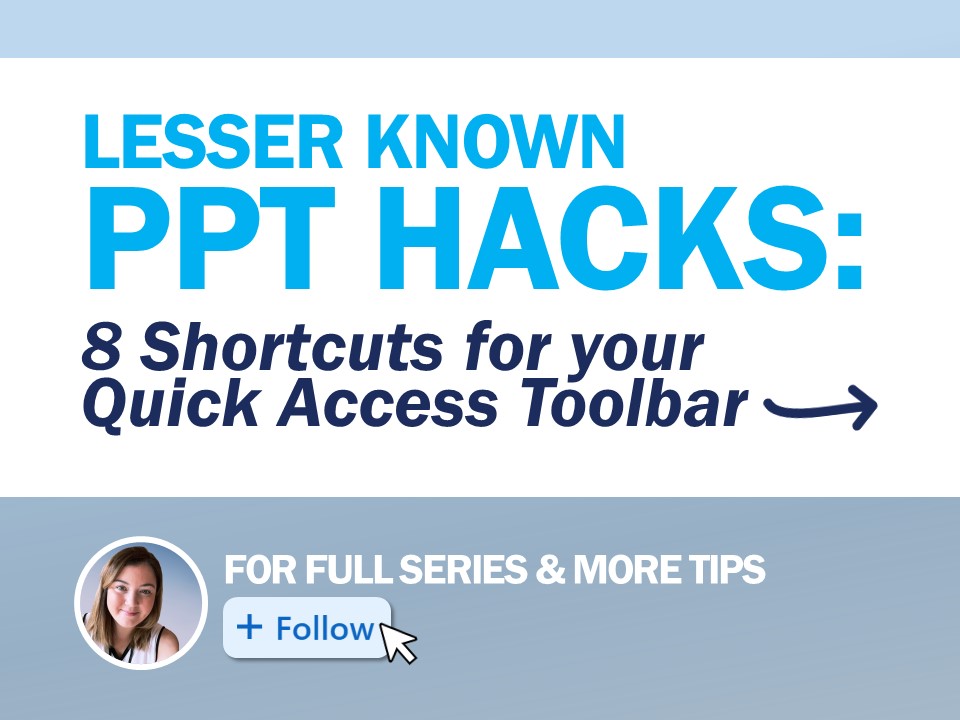
Everything you ever wanted to know about the Quick Access Toolbar (QAT) in Microsoft Powerpoint!
Check out some of the most used QAT tools below:
So, where is the Quick Access Toolbar?
You can find the Quick Access Toolbar either above or below your Tab ribbons in PowerPoint. To customize the shortcuts, click on the drop down at the far right of the bar and click More Commands. Alternatively, you can also access it by going to File > Options > Customize Quick Access Toolbar.
What should I add to the Quick Access Toolbar?
While you should take the time to go through All Commands, one-by-one, here are my most used and most unique commands added.
1. Advanced Document Properties
2. Format Shape
3. Eyedropper Tools
4. Snap to Grid
5. Snap to Shape
6. Font Family & Size
7. Selection Pane
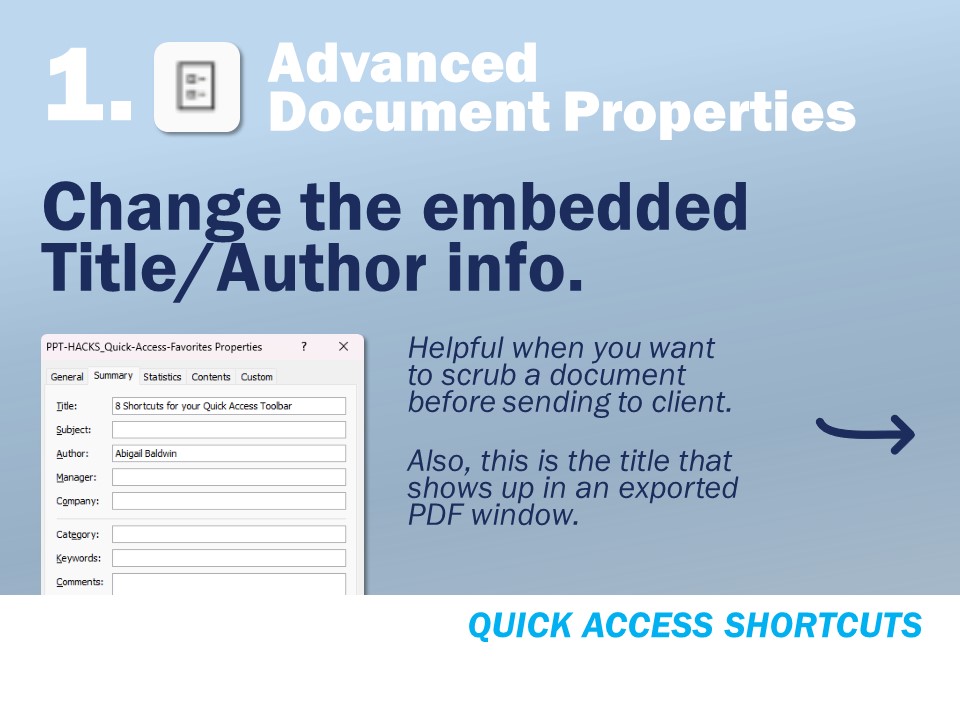
1. Advanced Document Properties
Using this one you can change the embedded Title/Author info. This is helpful when you want to scrub a document before sending to client (so your name doesn’t show up as author). Also, this is the title that shows up in an exported PDF window.
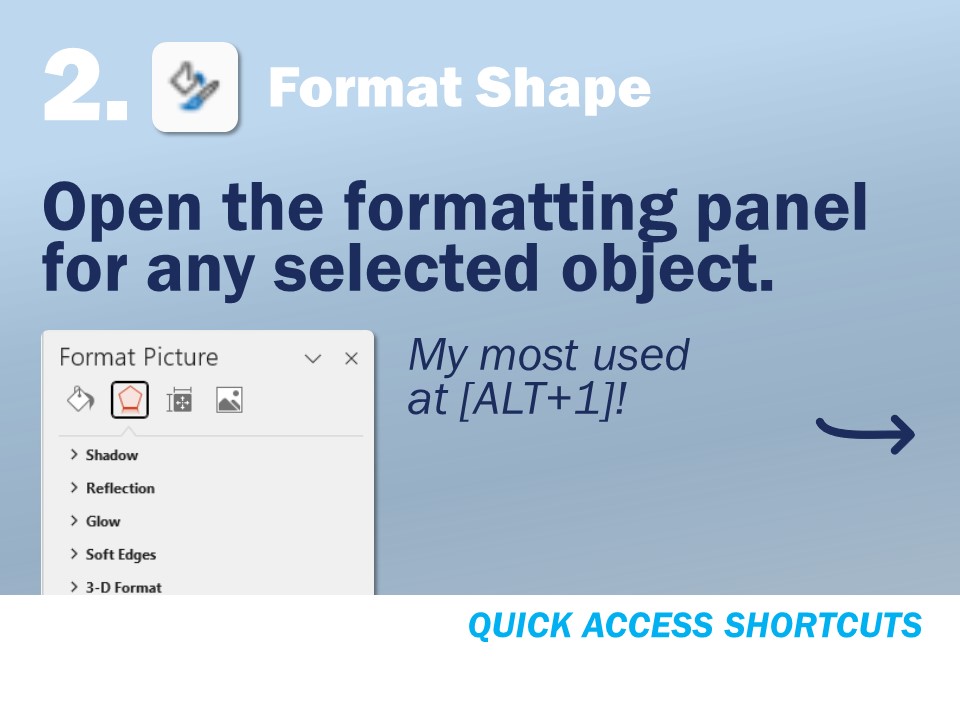
2. Format Shape
Awesome for opening the formatting panel for any selected object! My most used at spot 1 (ALT+1).
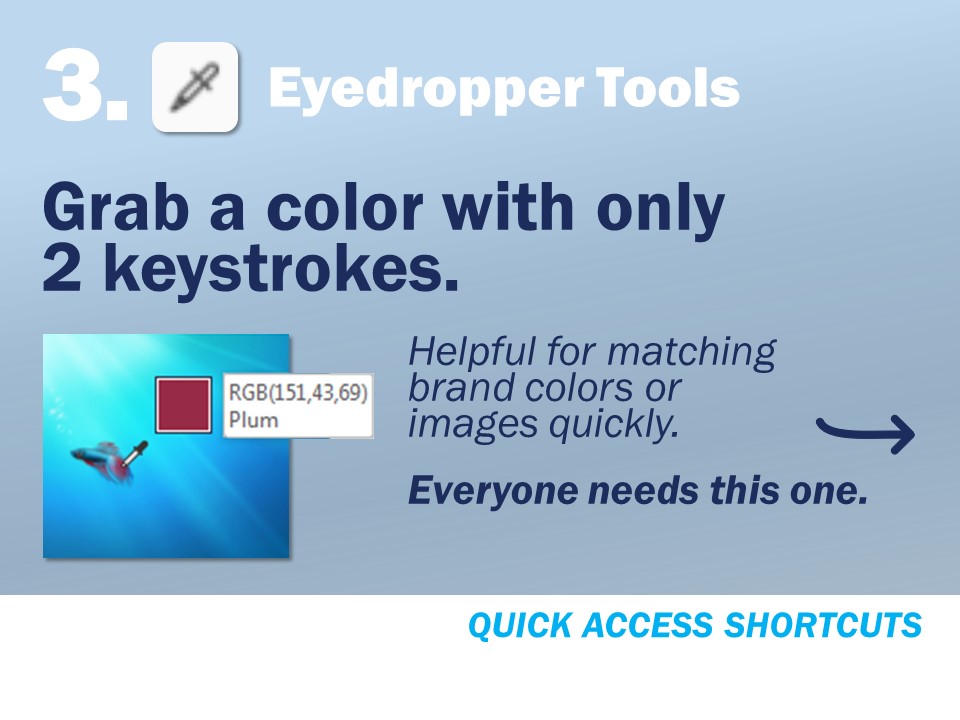
3. Eyedropper Tools
Helpful for matching brand colors or images quickly. Everyone needs this one!
4. Snap to Grid
Turn on/off the snap to grid function. When a line keeps moving from where you drop it, this is usually the culprit!
5. Snap to Shape
Turn on/off the snap to shape function. When a shape keeps moving from where you drop it next to another shape, this is usually the culprit!
6. Turn Guidelines On/Off
Turn on/off the guidelines for easy viewing. Turning off the guidelines but not getting rid of them completely is really helpful when others are viewing your live file. Having this on the QAT is great for when working in the room with a client and they pop over to see the file for a question, I can flip the guides off quickly for less distractions.
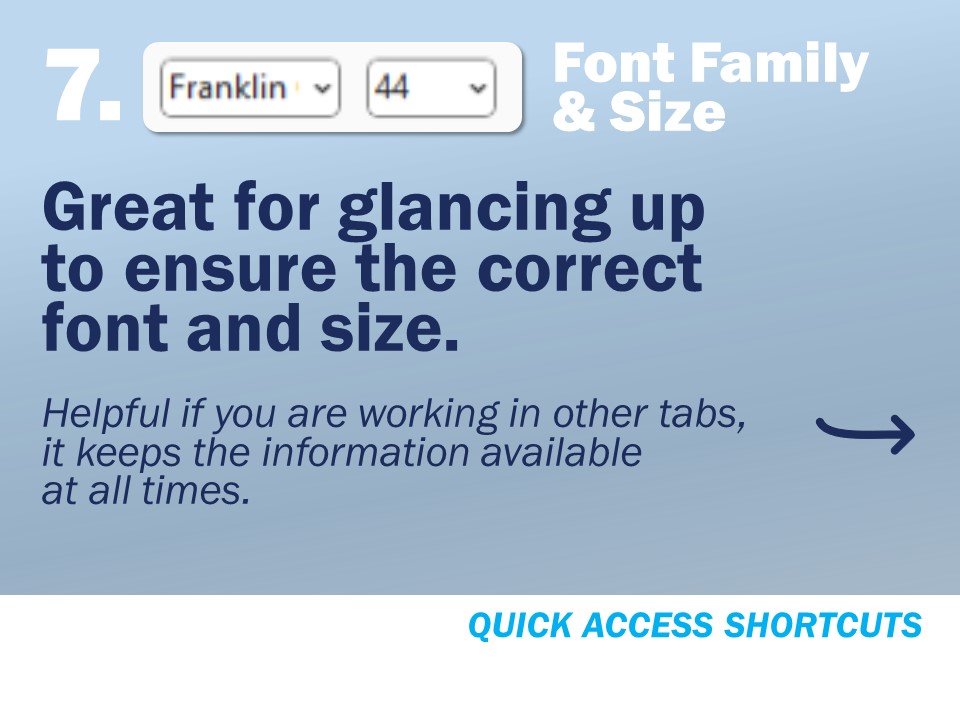
7. Font Family & Size
This one isn’t really needed but I like to include it because being able to check the font or size regardless of what tab you are working on makes life so easy!
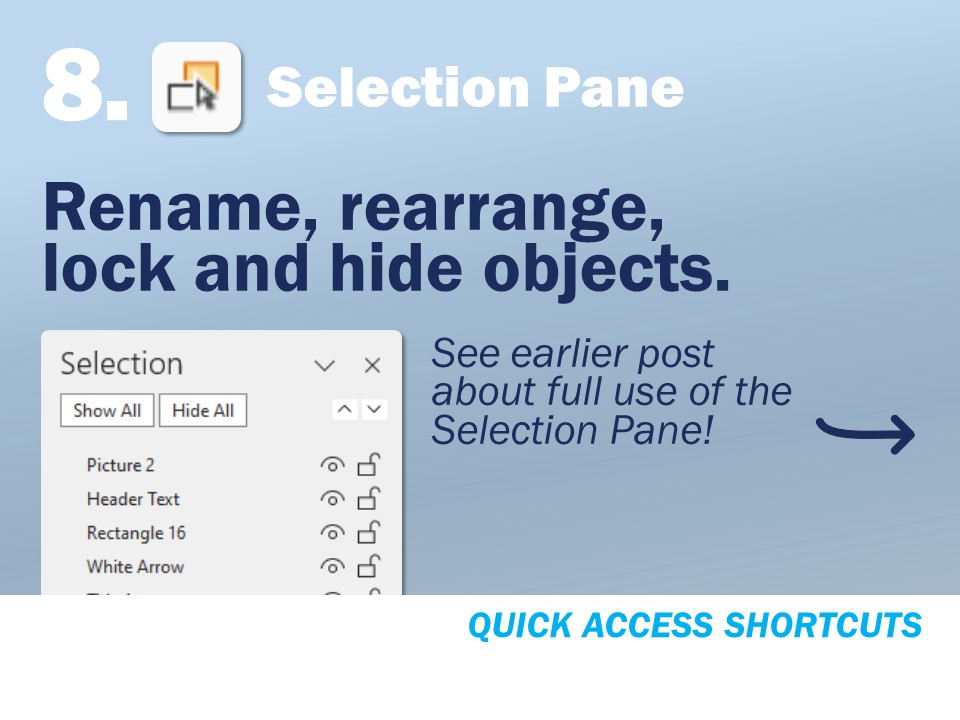
8. Selection Pane
The Selection Pane is so handy for a number of reasons (see more here) including renaming, rearranging, locking and hiding objects.
Was this helpful? Check out some more tips & tricks on our LinkedIn page.
Prefer to let the professionals handle it? We would love to help!
Reach out to abby@nulumedia.com today.

Founder & Sr. Designer
Abby Baldwin
Hi! I’m Abby Baldwin, Founder and Sr. Designer at Nulu Media.
After over a decade in NYC creating custom PPT templates and presentations for investment bankers at Bank of America and Deustche Bank, I consulted with some of the nation’s top legal teams at trial creating their graphics and presentations.
With these unique experiences, I was able to start Nulu Media!
We offer full-service design to businesses of all sizes, providing all the perks of having an in-house design team with none of the overhead. If you or others in your company need PPT or Google slides presentations, marketing or conference materials, trade show signage, you name it, we’d love to help!
“Effective presentation design isn’t just about visuals;
it’s about crafting a narrative that engages, informs,
and inspires your audience to act.”
The post Lesser Known PPT Hacks: Quick Access Toolbar appeared first on NULU MEDIA.
]]>The post Lesser Known PPT Hacks: The Selection Pane appeared first on NULU MEDIA.
]]>
Everything you ever wanted to know about the Selection Pane in Microsoft Powerpoint!
Check out some tips and where to find it below:

So, where is the Selection Pane?
There are a few common ways to find the Selection Pane in PowerPoint:
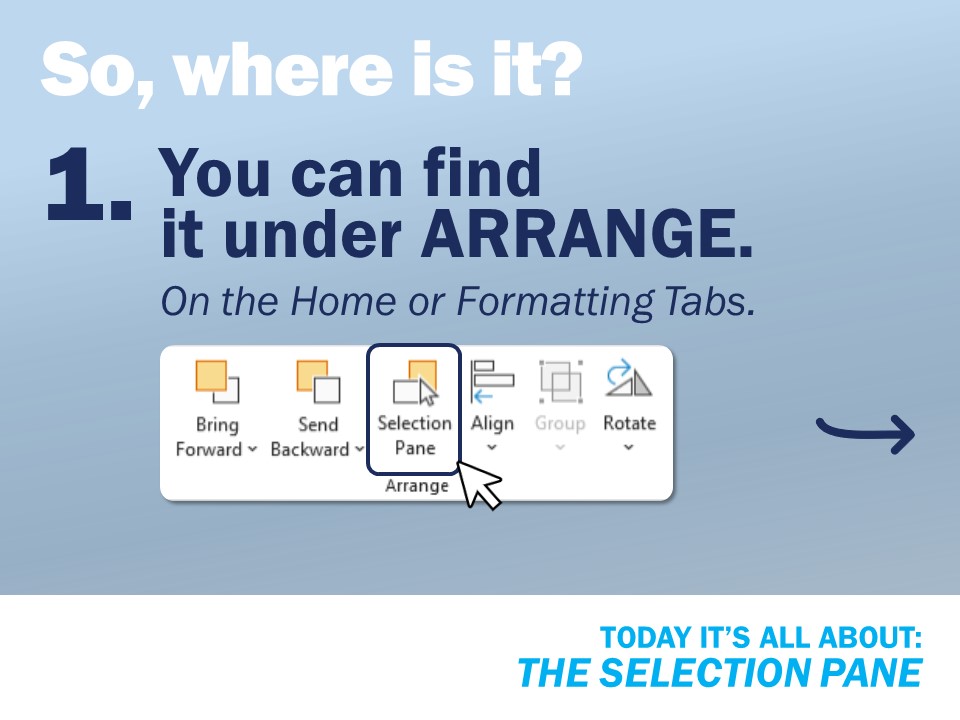
1. By clicking an object in PPT, this should bring up a new toolbar Tab menu called Shape Format. In the Arrange section next to Bring Forward and Send Backward should be a button to open the Selection Pane.
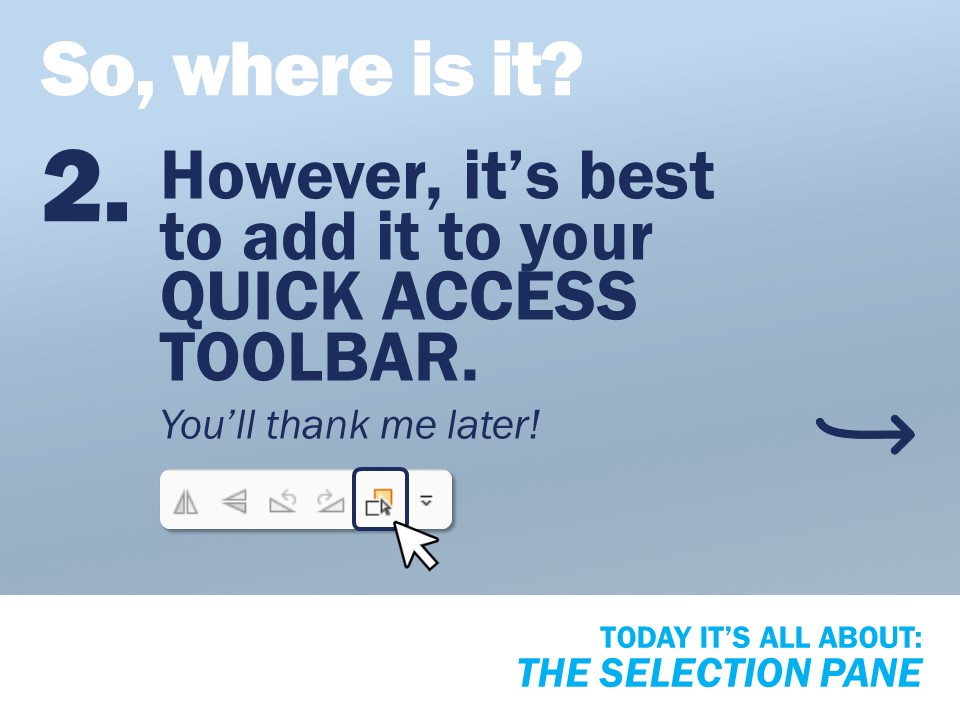
2. I have the Selection Pane added to my Quick Access Toolbar (more on QAT). This allows for the fastest access and you can use hotkeys (more on hotkeys) to open it!
(In case you need it, another way is to from the Home Tab, there should be an Arrange dropdown menu where you would find Alignment and Ordering. At the bottom of this dropdown is also the Selection Pane.)
So, what can I use the Selection Pane for?
The Selection Pane is super helpful for complex slides with layers and layers of different objects.
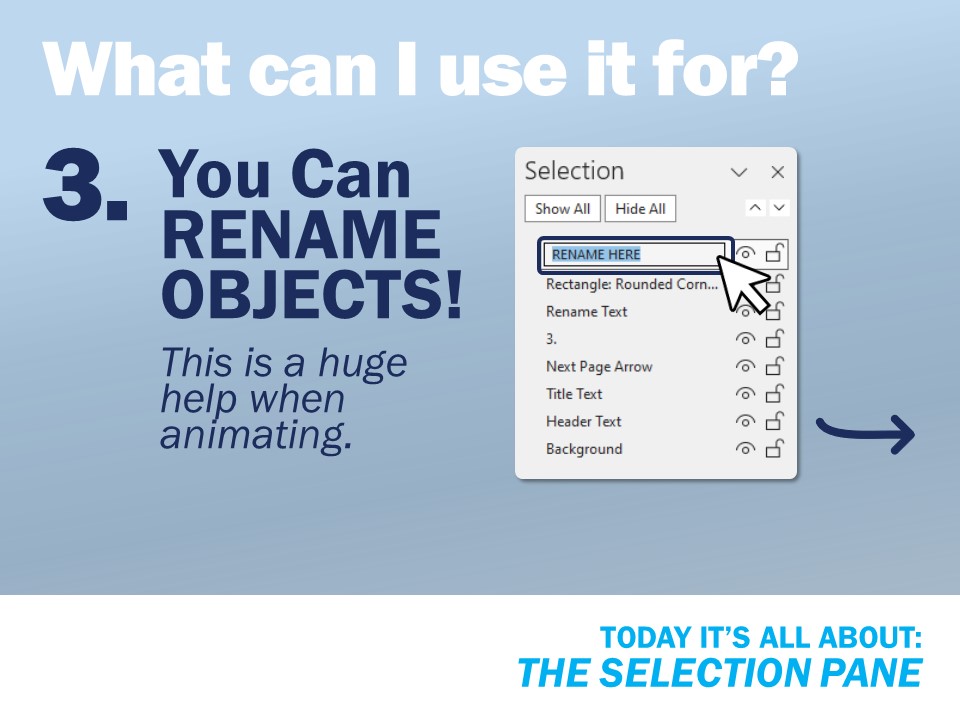
3. You can RENAME objects! This is a huge help when animating to know what shape is selected. When you change the name in the Selection Pane, it also shows up as the new name in the Animation Pane.
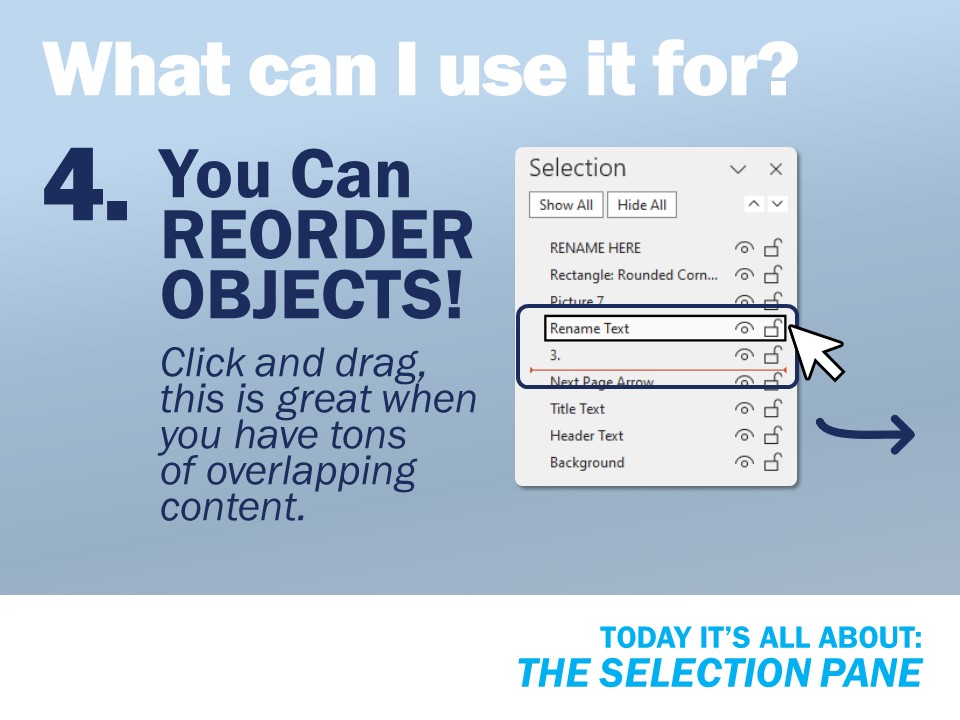
4. You can REORDER objects! Simply click and drag to change the order of objects on a page. Easily bring items to the front so you can edit them if you have a lot of overlapping content.
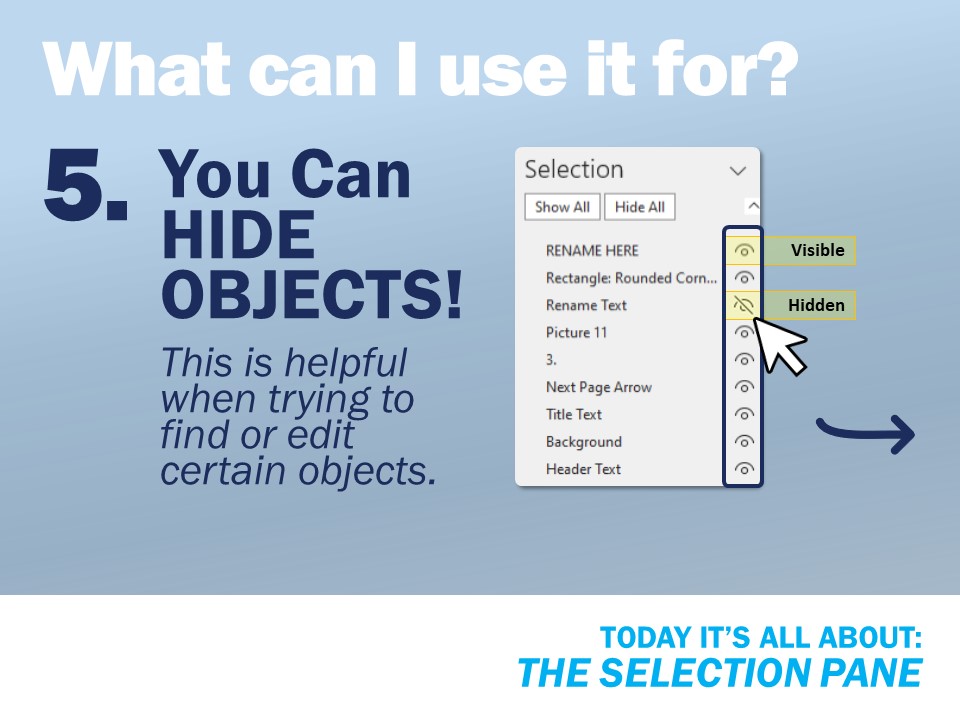
5. You can HIDE objects! When you need to focus on a certain group of objects but don’t want to ungroup, you can hide everything else and ungroup, make changes then regroup easily. Also, helpful when you are trying to find a certain object on a content heavy slide.
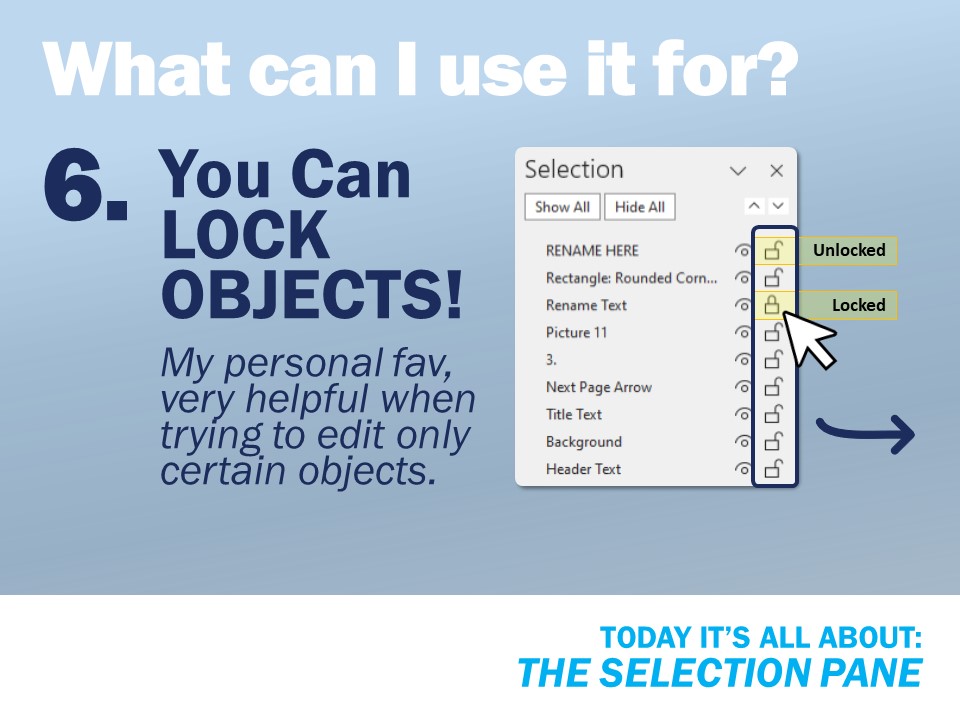
6. You can LOCK objects! Tired of selecting a whole group of objects when you only want to grab one? You can lock everything that is set so you can focus on the objects that need edits or changes.
Was this helpful? Check out some more tips & tricks on our LinkedIn page.
Prefer to let the professionals handle it? We would love to help!
Reach out to abby@nulumedia.com today.
Founder & Sr. Designer
Abby Baldwin
Hi! I’m Abby Baldwin, Founder and Sr. Designer at Nulu Media.
After over a decade in NYC creating custom PPT templates and presentations for investment bankers at Bank of America and Deustche Bank, I consulted with some of the nation’s top legal teams at trial creating their graphics and presentations.
With these unique experiences, I was able to start Nulu Media!
We offer full-service design to businesses of all sizes, providing all the perks of having an in-house design team with none of the overhead. If you or others in your company need PPT or Google slides presentations, marketing or conference materials, trade show signage, you name it, we’d love to help!
“Effective presentation design isn’t just about visuals;
it’s about crafting a narrative that engages, informs,
and inspires your audience to act.”
The post Lesser Known PPT Hacks: The Selection Pane appeared first on NULU MEDIA.
]]>